ComLinker TCP Serial Bridge

TCP to serial bridge for Windows

Manage multiple TCP to COM connections with auto reconnect.

ComLinker maps TCP/IP devices to local Windows COM ports, keeps each rule visible in one console, and recovers automatically after network drops or device restarts.

  • 14-day full-feature trial
  • Multi-connection management
  • Visible running/connected status
  • Auto reconnect
  • Windows Server friendly
  • Launch price $69
  • One-time license
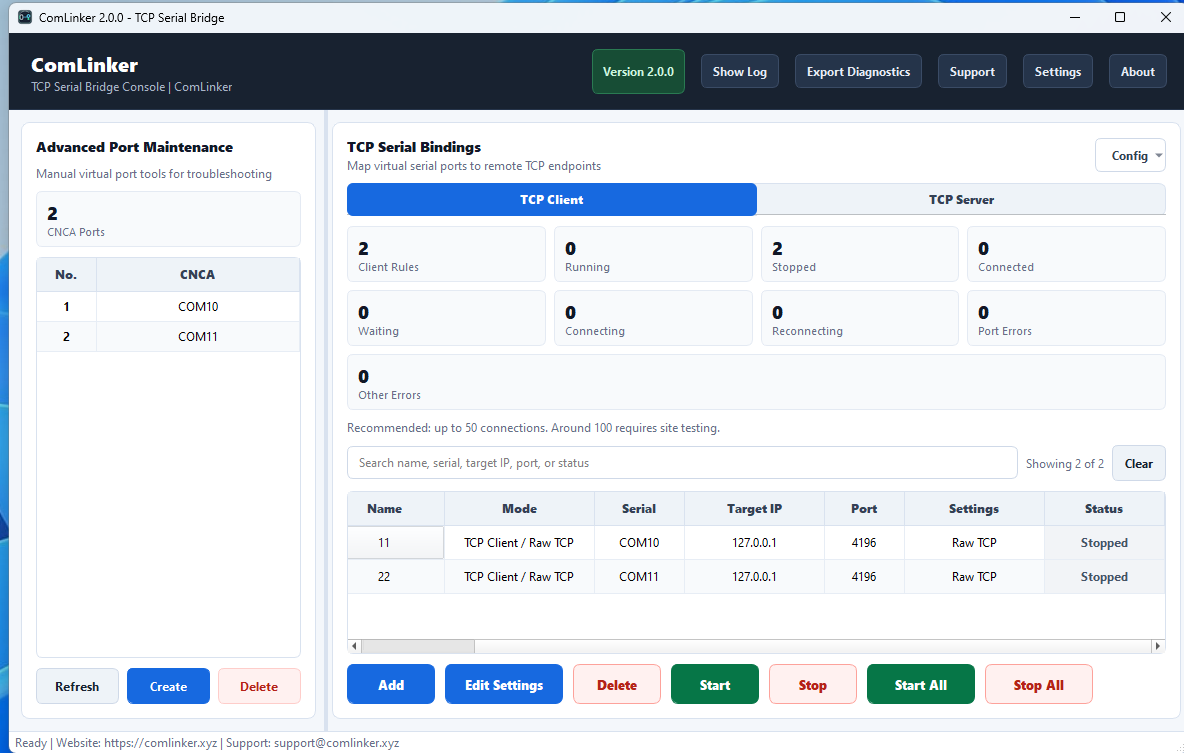
ComLinker desktop console showing TCP serial bindings and virtual COM ports
Real ComLinker 2.0.0 desktop console
Multi-Connection Run and manage several TCP to COM bindings from one Windows console
Easy to Manage Keep COM ports, TCP endpoints, and rule status visible for support
Auto Reconnect Recover after network drops, gateway restarts, and offline targets
No Code Changes Keep existing COM-port applications running with TCP/IP devices

Field-ready bridge management

Built for TCP to serial setups that need to keep running.

ComLinker focuses on the daily work around serial bridge deployments: several rules, clear status, recovery after disconnects, and configuration that another technician can understand later.

Basic bridge tools often leave you managing the gaps

  • One connection is easy, several connections become hard to track.
  • Status may be hidden in logs or separate windows.
  • Dropped TCP connections can require manual restarts.
  • Configuration can be scattered across machines or notes.

ComLinker keeps the bridge workflow visible

  • Manage multiple TCP to COM bindings in one console.
  • See running, stopped, connected, and offline state quickly.
  • Reconnect automatically after network or device interruptions.
  • Export configuration and diagnostics for repeatable support.

The field problem

Industrial devices moved to TCP/IP. Your Windows software still expects COM ports.

Replacing a stable legacy application can be expensive and risky. ComLinker sits between the network device and your existing software, presenting TCP data as a normal local virtual serial port.

Legacy COM-only software

Keep SCADA tools, meter readers, lab utilities, and vendor software working when the device is now reached over Ethernet.

Network-connected equipment

Bridge PLCs, DTUs, meters, serial device servers, industrial gateways, and TCP endpoints into familiar serial workflows.

Real serial to TCP server

Expose a physical RS232/RS485 COM port as a TCP server so remote systems can access equipment attached to the Windows machine.

Field reliability

Use auto reconnect and connection monitoring to recover from device restarts, network drops, and service interruptions.

How it works

Bridge TCP endpoints and real serial ports in minutes.

TCP/IP Device
ComLinker
Virtual or Real COM Port
Legacy Windows App

Product console

Manage virtual ports and TCP bindings from a clear Windows GUI.

Create CNCA virtual ports, bind them to remote TCP endpoints, monitor running/stopped status, and export diagnostics when you need support.

Read the quick start guide
ComLinker interface with COM10 and COM11 TCP client bindings

Product workflow

From virtual port creation to a running TCP serial bridge

ComLinker keeps the setup flow visible: create or select a virtual COM port, add a TCP binding, then start the rule and monitor its status from the console.

ComLinker dashboard listing virtual COM ports and TCP client rules

Step 1

Review virtual ports and bindings

See available CNCA ports, TCP client rules, connection counts, and stopped/running states in one console.

Add TCP Serial Binding
Mode
TCP Client
Protocol
Raw TCP
Serial
Auto create virtual port
IP
127.0.0.1
Port
4196

Step 2

Add the TCP endpoint

Choose TCP client mode, select or auto-create a virtual serial port, and enter the target IP address and port.

Select Port
COM12
OK Cancel

Step 3

Create or select a COM port

Create a new CNCA port or select an available COM number so legacy Windows software can connect normally.

Use cases

Common TCP to COM port deployment scenarios

TCP to COM

Map TCP devices to COM-only software

Connect a network device while the Windows application continues reading and writing a local COM port.

Read setup guide

PLC / Meter

Keep industrial data collection tools running

Use existing PLC, meter, and instrumentation software without rebuilding communication logic.

Read PLC guide

DTU

Bring remote DTU data into a virtual COM port

Receive field device data through TCP and expose it to legacy serial applications.

Read gateway guide

Serial Device Server

Bridge Ethernet serial servers to Windows tools

Map serial device servers and industrial gateways to stable local virtual COM ports.

Read device server guide

Multi-connection

Run several TCP to COM rules together

Keep multiple endpoints, COM numbers, and connection states manageable on one Windows machine.

Read management guide

Stable reconnect

Recover from network drops and device restarts

Use visible status and auto reconnect to reduce manual recovery work in the field.

Read reliability guide

Features

Built for practical Windows field deployments

Multi-connection Support

Manage multiple serial and TCP bindings simultaneously without rewriting applications.

Auto Reconnect

Detect dropped connections and restore communication automatically.

Heartbeat Detection

Monitor connection health and recover after device or service restarts.

Virtual Serial Ports

Create local CNCA virtual COM ports for serial software, testing, and data forwarding.

TCP Client Binding

Bind a virtual serial port to a remote TCP host and port from the desktop console.

Export Diagnostics

Share configuration and runtime details with support when troubleshooting field issues.

Try ComLinker

Start with a 14-day full-feature trial.

Download the Windows package, create a virtual COM port, and connect your first TCP endpoint before purchasing a license.

FAQ

Questions before you install

Does ComLinker support multiple TCP to COM connections?

Yes. ComLinker is designed to manage multiple TCP and serial bindings from one Windows console so ports, endpoints, and status remain visible.

Does it reconnect automatically?

Yes. ComLinker monitors TCP bridge status and reconnects after common network drops, target restarts, or offline-at-startup situations.

What does a TCP to COM bridge do?

It maps a remote TCP/IP device to a local virtual COM port, so Windows software that only understands serial communication can keep working without code changes.

Can I use ComLinker with PLCs, DTUs, meters, or serial device servers?

Yes. ComLinker is designed for network-connected industrial devices such as PLCs, DTUs, meters, serial device servers, gateways, and other TCP-based equipment.

Is a license subscription required?

No. The Standard License is a one-time license for one workstation. The current launch price is $69, and the free trial lets you test the full workflow before buying.

Do I need to change my existing Windows application?

No. Your software continues to open a COM port. ComLinker handles the TCP bridge behind that virtual serial interface.

Is ComLinker suitable for Windows Server?

Yes. ComLinker is designed to be friendly to Windows Server deployments and standard Windows driver-signature policy for normal use.